Friday, April 29, 2011

Swami Vivekananda - Never Think You Are Powerless Or Helpless

Once a man approached Swami Vivekananda and pleaded his helplessness. Swami Ji listened to him carefully and then thundered- "What nonsense are you talking? Within you lies indomitable power.If you think, you are powerless, you will become powerless, on other hand if you think you are powerful, you will be so. No one can help you unless you try to help yourself."
There is another saying of Swami Vivekananda- “Never think there is anything impossible for the soul. It is the greatest heresy to think so. If there is sin, this is the only sin ? to say that you are weak, or others are weak.”
Power- Energy= Shakti -that should be our weapon- we can do everything. We are children of immortality (Amritsahya Putra). So, as Swami Ji warned we should never think, we are powerless or helpless, as “We are responsible for what we are, and whatever we wish ourselves to be, we have the power to make ourselves. If what we are now has been the result of our own past actions, it certainly follows that whatever we wish to be in future can be produced by our present actions; so we have to know how to act.”
So, let's try to "Arise, awake and stop not till the goal is reached" 
Jai Swami Vivekananda.

Tuesday, April 26, 2011

Video On Pitamaha Bhishma

This Youtube video is awesome. i never had and i still don't have words to describe or praise a character like Pitamaha Bhishma.

Monday, April 25, 2011

Maula Salim Chisti, Aaqa Salim Chisti - A Sufi Song

Film: Garam Hawa (1973), Lyrics: Kaifi Azmi, Music composed by Ustad Bahadur Khan, Singer: Aziz Ahned Khan Warsi

Here is the lyrics of the song. (Of course), I am dedicating it to Swami Vivekananda-

Lyrics

Sukhi Rut Mein Chhaai Badariya, Chamaki Bijuriya Saath
Duubo Tum Bhi Sang Mere, Ya Thaamo Mera Haath

Maula Salim Chishti, Aaqa Salim Chishti - 2
Aabaad Kar Do Dil Ki Duniya Salim Chishti - 2

Jitani Balaayein Aai, Sab Ko Gale Lagaaya - 2
Khuun Ho Gaya Kaleja, Shikava Na Lab Pe Aaya - 2
Har Dard Ham Ne Apana, Apane Se Bhi Chhupaaya
Har Dard Ham Ne Apana, Ha
Har Dard Ham Ne Apana, Apane Se Bhi Chhupaaya - 2
Tum Se Nahin Hai Koi Parda Salim Chishti
Maula Salim Chishti

Jaaega Kaun Aake, Pyaasa Tumhaare Dar Se - 2
Kuchh Jaam Se Pienge, Kuchh Maharbaan Nazar Se - 2
Kuchh Jaam Se Pienge, Ha
Kuchh Jaam Se Pienge, Kuchh Maharbaan Nazar Se - 2

Ek Pyaali Bhar Ke De Saaqi Mai-E-Gulafaam Ki
Ek Apane Naam Pi, Aur Ek Allaah Naam Pi
Met De Puuri Meri Hasarat Dil-E-Naakaam Ki
Dede Dede Dard Mein Koi Suurat Aaraam Ki
Ghuunt Hi Pila Magar Josh-E-Tamanna Daal Kar
Ek Qatara De Magar Qatare Mein Dariya Daal Kar
Kuchh Jaam Se Pienge, Kuchh Maharbaan Nazar Se

Ye Sang-E-Dar Tumhaara, Todenge Apane Sar Se - 2
Ye Sang-E-Dar Tumhaara, Ha
Ye Sang-E-Dar Tumhaara, Todenge Apane Sar Se - 2
Ye Dil Agar Tumhaara Tuuta Salim Chishti - 2
Maula Salim Chishti

Is Sang-E-Dar Ke Sadaqe, Is Rahaguzar Ke Sadaqe
Bhatake Hue Musaafir, Manzil Pe Pahunche Aakir
Ujade Hue Chaman Mein, Ye Rang-E-Pairahan Mein
Sau Rang Muskuraae, Sau Phuul Lailahaae
Aai Nayi Bahaarein, Pahalane Lagi Phuaarein
Ghuunghat Ki Laaj Rakhana, Is Sar Pe Taaj Rakhana
Is Sar Pe Taaj Rakhana

Aaqa Salim Chishti, Maula Salim Chishti

Video
 Also watch the video of the song here. It is VERY WELL presented. :)

Sunday, April 24, 2011

Amazing Grace By John Newton

Recently, I have read an amazing poetry of John newton - Amazing Grace. The poetry is truly wonderful. It may be a song also, but, I read it as a poetry.
John, you were lucky that you got Lord's grace! But, when shall I get my Lord's grace? I am loosing my path, when will Lord show me mercy?
Anyway, the poetry can be read here.

Saturday, April 23, 2011

Boro Asha Kore Esechhi Go Kachhe Deke Low - Rabindra Sangeet

Today, I am going to share/remember the lyrics of the Rabindra Sangeet "Boro Asha Kore Esechhi Go Kachhe Deke Low". Here is the lyrics-

Boro Asha Kore Esechhi Go Kachhe Deke Low
Phirao Na Jononi Boro Asha Kore Esechhi Go Kachhe Deke Low
Din Hine Era Keho Chahe Na, Tumi Tare Rakhibe Jani Go
Aar Ami Je Kichu Chahi Ne, Jononi Bole Sudhu Dakibo
Tumi Na Rakhile Griho Aar Paibo Kothay... .... Knede Knede Ghure Berabo
Oi Je Heri, Tomoso Ghono Ghora Gohono Rojoni... Boro Asha Kore... ...


PDF Download
Download PDF copy here.

Tuesday, April 12, 2011

Facebook Save Chat

Recently Facebook has introduced a new feature in their social networking site -'Save Chat'. So, that means, you can now see your chat history in Facebook. This is undoubtedly one major step taken by Facebook. So, there is no need to use add-ons or extensions like Facebook Chat Manager now! You can check this blog post  for more info too.
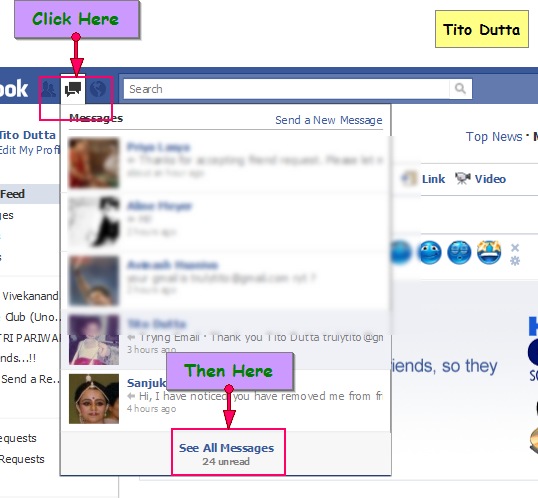
You can see saved chats in your Facebook messages.
To see saved chats in Facebook-
1) Sign in to your Facbook account.
2) Go to message inbox by clicking on the 'Message' icon in the titlebar.and then click on 'Show all messages'.  See screenshot-
In your message inbox, you should get all your recent chats. Facebook has implemented this because many people suggested this feature.
But, unfortunately if this feature is already implemented in your account, you can not turn it off.  I personally don't like the way Facebook has implemented it. I feel there should be separate folders/sections for chats and regular messages. I may delete those chat messages from my message inbox, but that is not a good solution. If you too think like me and don't like this implementation or want to see some modification you can suggest it to Facebook here.
If you can't see these features in your account, then the new message system has not been launched in your account still. You need to wait for few days. You may ask a friend who is using new message to invite you. BUT, please note, (currently) if once upgraded you can not go back to older message system without creating a new account (but, according to Facebook TOS section 4.2, one can not have more than one Facebook profile)!
If you have something to ask or say, you can  add it in the comment section below!

Monday, April 11, 2011

How to get or sign up for Facebook email

A friend (Avinash) in my Facebook profile has just asked me a question- How to get get a Faceook email id like username@facebook.com.
Well, for the people who stay up to date with internet world, Facebook email is not a new thing. PCMag had an article on it on 15th November, last year.  But, I guess many people don't know it still and they don't have enough information too (as Avinash is not the first person who asked me the question, I have got this question from few more people too.)
Well, Avanish and the people who are interested to learn how to get Facebook email, I am writing this post-
As far I know, you can not directly sign up for a facebook email account still now. You need to apply for it.
To apply for a Facebook email id-
Click here to apply for Facebook email (You will have to sign in first).
Facebook will take some days to approve your request. And as soon as your request will be accepted, you will get a message from Facebook while signing in/opening your account.
Choose a username, create the email id and enjoy Facebook email!
Here is a screenshot of my Facebook email page-
Hope it will help you. If you need further help or you have something to say, please post it in the comment section below.

How to add "You may also like" widget in blogger

In this post, I shall discuss on how to include an automatic "You may also like" or "You should also read" section in your blog? If you want to recommend your blog readers few more similar posts from your blog, then you can check this widget.
Well, what does actually the widget do is-  when you include this widget in your blog, the widget's (site's) crawlers (spiders) quickly crawl your whole site and make an index and from the index they show some results in "You may also read" or "You should also read" section.
The installation of the widget is very easy. The name of the widget is LinkWithin. Click here to visit the site. The site owners have already published a detailed tutorial there. So, I shall not repeat it here. Just visit the site.
But, few point, I think, I should mention here-
1) The best place to add the widget is 'below post'. You can drag and drop in design settings page in your blogger account after the installation.


2) Also check the width of your blogger page before selecting the width of the widget. For example for my blog I have chosen 4 stories. (It is applicable on the date of writing this post. If you can not see the widget at the time of reading this post, then most probably I have removed it and forgot to re-edit here). So, you need to think a little before choosing the width of the widget there. And if you make any mistake, just remove the widget from your blogger's account and re-install the widget again from the site.

Hope this will help. If you have some question or comment, please use the comment box below!

How to block or unblock someone in Gmail Chat

In this post, I shall discuss on how to block or unblock a contact in Gmail chat.

Block A Chat Contact
If you want to block someone in Gmail chat, follow these steps-
1) Sign in to your Gmail account.
2) In Chat box, in search add or invite filed, write (start writing) the name or email address of the person whom you want to block.
3) When the name will come up, hover the mouse cursor on the email id, you will get an option to block the contact in chat. Click on 'Block ABC' See screenshot-
While chatting with person, if you want to block the contact, click on down arrow beside 'action' in chat box's menu bar and them click on 'Block ABC'. Screenshot-

Unblock A Chat Contact
If you want to unblock the contact later, just write (start writing) the name or the email id of the person you blocked in Gmail chat. When the name will come up, untick 'Block XYZ'. See screenshot.
If you are using Google Talk, there you have a separate list for blocked contact. Log in to your  Google Talk account. Click on Settings and then go to 'Blocked' tab. Click on the contact you want to unblock and click on unblock.

Video Demonstration
I have also prepared a video demonstration for this. Have a look at this video presentation if you are still having some problem.

If you have something to say or ask about this post, please write it down in the comment box below.

Learn how to delete a contact in Gmail chat here.

Play With Browser Font

In this post, I'll discuss on how to control font settings of your browser. I'll discuss about the mostly used  browsers only. If you are using any other browser, you can mention the browser's name in the comment section, I'll update about that browser.

Adjust Font Size Of Web Page
I have noticed in different forums and communities that many people come up with the question that they unintentionally pressed something in keyboard and the font of the page has become very small or big and now they can manage it. Well, the solution is quite easy. You can manage your webpage's font size like this-
For most of the browsers you can press to enlarge font size, to decrease font size and to restore font size to default. Try it. Please note means the combo key of 'Ctrl' button and 'plus' symbol button. Similarly means 'Ctrl' button and 'Minus' symbol button and means 'Ctrl' button and 'Zero' number button.
An image to clarify it more-
You can adjust font size using mouse wheel too.
Use to enlarge font size and to decrease font size. I don't know how to restore font size to default using mouse wheel. I use for that.
You can adjust font size of the browser from its menu bar settings too-
In Firefox >> Menu Bar >> View >> Zoom >> Zoom In or Out
In IE >> Menu Bar >> View >> Text Size >> Choose One.
In Chrome >> Wrench Icon >> Zoom
In Safari >> Menu Bar>> View>> Zoom In or Out (If you can not see menu bar, click on wrench icon, and click on ‘show menu bar’)
In Opera>>  Menu Bar (If you can not see menu bar, click on Menu Button in the top left corner of screen, and click on ‘show menu bar’)>> View>> Zoom>> Choose one
In Epic>> Menu Bar >> View >> Zoom >> Zoom In or Out
In Netscape Navigator>> Menu Bar >> View >> Zoom >> Zoom In or Out

Change Browser's Default Font, Font size etc
You can change browser's default font, font size etc too. To do this-
1) In Firefox Menu Bar>>Tools>>Options>> Content Tab>>Choose font, font size, color etc. You may go to advanced tab there for advanced settings of browser's display font.
2) In Chrome Wrench Icon>> Under the hood tab>> Set Font properties
3) In Internet Explorer Menu Bar>>Tools>>Internet Options>>General>> Appearance (bottom of the page)>> Set font size, color, language there.
4) In Opera>> Menu Bar (If you can not see menu bar, click on Menu Button in the top left corner of screen, and click on ‘show menu bar’)>>Tools>>Preferences>>Advanced>>Fonts>> Choose your font, font size etc.


You can change font etc from browser's config settings too. To do that (you need to be careful while handling these settings pages)-
In Firefox in address bar write about:config and press 'Enter', a pop up will come up. Click to promise to be careful. Then you have landed in the main settings page of your browser (Firefox) in the search option write 'Font', lots of results will come up. You can change and mange fonts from here too. Perhaps I am going to write another post on Firefox about:config tricks, so I'll not describe in details on it here.
Similarly you can use about:config in Opera too. Opera does not alert you when you enter about:config in address bar. After entering about:config in address bar, click on the Font tab and there you can change font settings.
Well, I do not know, how to use about:config in Chrome. Please let me know about it in comment section if you know about it.
That's all for this post now. If you want to say something, please use the comment box below.

Sunday, April 10, 2011

Ei Monihaar Amar Nahi Saaje

Today here I am sharing MP3 audio, Lyrics and Video of a Rabindra Sangeet "Ei Monihaar Amar Nahi Saaje"
Here is the lyrics of the Rabindra Sangeet-
Lyrics
Ei Monihaar Amay Nahi Saaje
Ere Porte Gele Lage
Er Chnirte Gele Baje
Ei Monihaar Amay Nahi Saaje

Kontho Je Rodh Kore
Sur To Nahi Swore
Kontho Je Rodh Kore
Sur To Nahi Swore
Oi Dike Je Mon Pore Roy
Mon Lage Na Kaje
Ei Monihaar Amay Nahi Saaje

Tai To Jodi Bose Achhi
Ei Haar Tomay Poray Jodi
Tobei Ami Banchi
Tai To Jodi Bose Achhi

Phulo Malar Dore
Goriya Lao More
Phulo Malar Dore
Goriya Lao More
Tomar Kachhe Dekhai Ne Mukh
Moni Malar Laje
Ei Moni Haar Amay Nahi Saaje
MP3
You can download the mp3 audio of this song sung by Hemanta Mukhopadhyay from here.

Video
And here is a Youtube Video for the song-
If you have some question, comment or request (like you need a mobile video for this song etc), please post your comment in the comment box below.
If you want to get lyrics, MP3 audio etc of any Rabindra  Sangeet or any Bengali Song, you can request it too below in the comment box.

Saturday, April 9, 2011

Can you help me Tito?

If you want my help some where or in some cases, then, the answer is, 'yes', I can help you. But please note down the following points-
1) I shall surely try my best to help you, if you have taken a good initiative. BUT, I have some choices and opinions, if the work you are going to do, does not match with my choice or opinion, I may not answer positive. So, at first, I need to judge the work you are going to do and asking me to help you.
2) I can help you as a person, but not as a group. I mean, I (I=Tito Dutta) can help you, but, I may not ask my friends etc to help you. I hesitate to request others. And there are not too many people who fulfill my requests. I do not have too many friends too. So, if you ask me to collect people for your help, I am helpless.
3) I am a frustrated person and a little bit schizophrenic. Highly depressed of life too. I may start helping you or join your initiative but may not continue in the same way.
4) I am a very week person, both mentally and physically and I can do almost nothing, you can call me a worthless, so I am not sure whether I have the eligibility to help you or not.

Yet, if you think, I can help you, please don't hesitate to contact me, I'll feel delighted to join your work.

Friday, April 8, 2011

Manik Bandopadhyay

 Manik Bandopadhyay was one the most prominent writers in the field of modern Bengali fiction. In his short life span of 48 years he wrote around 42 novels and near about 200 short stories. In Internet, there is not huge resource on Manik Bandopadhyay. But, if you want to study on Manik Bandopadhyay, I have collected some reference for you.
Biography
You can find biography of Manik Bandopadhyay here-
1) Wikipedia Article
2) MapOfIndia Article
Buy Books Online
You can buy his books online here-
1) SimIndia
2) Sera Manik
Download Books
1) You can download Dibaratrir Kabyo for free here.
2) You can download Putulnacher Itikotha for free here.
3) You can download Padmanadir Majhi here.


Note: If you have any comment or any question, you can use the comment box below.

Let me know about your question first

So, I am a regular user of two Google Help Forums, and I try my best to help people there.
Not, only in Google Help Forums, but, in other places too, sometimes, I try to answer others' questions or solve their problems.
But, it is not always easy for me to answer every question. There are several reasons behind it.
Firstly, I like to answer selected questions only. And the questions should be of my taste as well. If you ask me to provide you the URL of Complete Works Of Swami Vivekananda, you can expect an instant reply from me. But, if your question is- "What is best pornographic site for downloading 3gpp content, then, don't expect an answer from me.
Secondly, I do NOT have lots of time to answer all your questions too. If I am busy, I'll check the question you are asking, how much it is important for you, I mean, do you really need it or not! And if I feel, there is noting serious in your question/you are not serious about it, I may not answer your question.
Thirdly, If I dislike the type/subject/tone of your question/comment, I may not answer your question.
Fourthly, I have a very limited knowledge. So, there is a huge possibility that the question you are asking I do not know its answer. But, if it is the only reason, I'll inform you about it.
And,
Fifthly
And Most Importantly,
To understand you, your question and your need, I need details. So, please provide details. If you are talking with me for the first time (in Facebook etc) and suddenly come in chat and ask me, how to change theme in Facebook, I can't provide an answer immediately. I'll need to know your knowledge in scripts, your internet browser, your experience with greasemonkey etc first.
So, if you need help from me, please provide details about you and your question.
If you have some question about this post, you can write in the comment section.

Apply Bulk Action In Just Few Clicks In Gmail

You have thousands of mails in your inbox, perhaps you want to archive them and you are worried that it'll take long time if you want to do it page by page. Actually, not like that. You have a better option. You can do it in just few clicks. Learn it here-
When you choose all messages of one page in Gmail, you immediately get a link to select all messages which mach the criteria. See the snap-
Like this, you can easily, select and apply bulk action in Gmail in just few clicks.
You can also use advanced search operators first to select messages, then use bulk action.
 Here is an example, how advanced search can help you, if you wan to archive all messages before March, 2009, search in Gmail with search operator before:2009/03/01 (YYYY/MM/DD), and in the search result section, select all messages which match the search criteria and archive them.
You can learn more about Gmail advanced search here.
If you are still facing some trouble or you have some question or comment, please use the comment box below.

Problem Steps Recorder - Windows 7

If you are using Windows 7 Operating System in your computer, then perhaps you know about Problem Steps Recorder feature of Windows 7. It is one of the most exciting features of Windows 7, I feel.
So, what is Problem Steps Recorder?
Problem Steps Recorder is an application to automatically capture the steps you take on a computer, including a text description of where you clicked and a picture of the screen during each click (called a screen shot). After the recording you can save the file anywhere in computer.

Use Problem Steps Recorder
To use Problem Step Recorder in Windows 7-
1) Go to Run Command (Press ) and write PSR, press Enter.
2) When you want to start recording of the steps you want to record, start recording-


When you want to finish, click on 'Stop Record'.
Please note-
Your clicks will be recorded and described in Problem Steps Recorder, but, if you type something in Keyboard, that will not be recorded.

Change Settings
You can change settings of Problem Steps Recorder too.Open Problem Steps Recorder and click on the arrow beside Help (Question Mark). See snap-


Here you enable screen capturing and change number of screen capture to store (which is by default 25).

Wednesday, April 6, 2011

Hanuman Chalisa


Introduction
Hanuman Chalisa (हनुमान चालीसा), a prayer of forty choupais  is one of the best literary pieces of Hindu chanted by millions of Hindu people everyday. This song was written by Tulsidas.
1) You can read about Hanuman Chalisa here.
2) You can download PDF copy of Hanuman Chalisa Text from here.
3) There is a website dedicated to Hanuman Chalisa (Lord Hanuman). But, unfortunately the site seems to have some problem now (on April 06, 2011). Yet, the website is truly wonderful. Have a look here- here
4) You can join Hanuman Chalisa page in Facebook here. 


Books On Hanuman Chalisa
You can also buy books on Hanuman Chalisa-
1) Hanuman Chalisa by B.K. Chaturvedi: You will get a preview of the book here.
2) Flow Of Grace - Chanting The Hanuman Chalisa You will get a preview of book here.
3) Three Paths Of Devotion by Prem Prakash: You will get a preview here.

Request For Further Help
If you need more info about this post, or you have any question comment, you can write down below.
Keep chanting Hanuman Chalisa regularly - That's the light of Life.

Jai Hanuman!

Quest For God - A Poetry OF Swami Vivekananda


I have recently read a poetry of Swami Vivekananda. I have downloaded Complete Works Of Swami Vivekananda, and now spending some regularly in that book (though I have been reading Swami Vivekananda's works for last many years now)
Quest For God- the poetry of Swami Vivekananda is awesome. This poetry was written to J.H Wright. on September 04, 1983. Wright was the person who introduce Swami Vivekananda to Parliament Of Religion in Chicago. Here I am sharing the poetry.

Quest For God

O'ver hill and dale and mountain range,
In temple, church, and mosque,
In Vedas, Bible, Al Koran
I had searched for Thee in vain.

Like a child in the wildest forest lost
I have cried and cried alone,
"Where art Thou gone, my God, my love?
The echo answered, "gone."

And days and nights and years then passed
A fire was in the brain,
I knew not when day changed in night
The heart seemed rent in twain.
I laid me down on Ganges's shore,
Exposed to sun and rain;
With burning tears I laid the dust
And wailed with waters' roar.

I called on all the holy names
Of every clime and creed.
"Show me the way, in mercy, ye
Great ones who have reached the goal."

Years then passed in bitter cry,
Each moment seemed an age,
Till one day midst my cries and groans
Some one seemed calling me.


A gentle soft and soothing voice
That said 'my son' 'my son',
That seemed to thrill in unison
With all the chords of my soul.

I stood on my feet and tried to find
The place the voice came from;
I searched and searched and turned to see
Round me, before, behind,
Again, again it seemed to speak
The voice divine to me.
In rapture all my soul was hushed,
Entranced, enthralled in bliss.

A flash illumined all my soul;
The heart of my heart opened wide.
O joy, O bliss, what do I find!
My love, my love you are here
And you are here, my love, my all!

And I was searching thee -
From all eternity you were there
Enthroned in majesty!
From that day forth, wherever I roam,
I feel Him standing by
O'ver hill and dale, high mount and vale,
Far far away and high.

The moon's soft light, the stars so bright,
The glorious orb of day,
He shines in them; His beauty - might -
Reflected lights are they.
The majestic morn, the melting eve,
The boundless billowing sea,
In nature's beauty, songs of birds,
I see through them - it is He.

When dire calamity seizes me,
The heart seems weak and faint,
All nature seems to crush me down,
With laws that never bend.
Meseems I hear Thee whispering sweet
My love, "I am near", "I am near".
My heart gets strong. With thee, my love,
A thousand deaths no fear.
Thou speakest in the mother's lay
Thou shuts the babies eye,
When innocent children laugh and play,
I see Thee standing by.

When holy friendship shakes the hand,
He stands between them too;
He pours the nectar in mother's kiss
And the baby's sweet "mama".
Thou wert my God with prophets old,
All creeds do come from Thee,
The Vedas, Bible, and Koran bold
Sing Thee in Harmony.

"Thou art," Thou art" the Soul of souls
In the rushing stream of life.
"Om tat sat om." Thou art my God,
My love, I am thine, I am thine.

Monday, April 4, 2011

Note On Ustad Bismillah Khan And His Music


Introduction
For last few days, I have been studying on Ustad Bismillah Khan. Ustad Bismillah Khan was perhaps the person who brought Shehnai to the center stage of Indian Classical Music and was responsible for making Shehnai a world class Indian Classical Musical instrument. In 2001 he was awarded Bharat Ratna, the highest civilian honor of India. He was third classical musician of India to receive this award (M. S. Subbulakshmi got the award in 1998 and Pt Ravi Shankar got the award in 1999). Ustad Bismillah Khan was credited with having almost monopoly over the instrument as he and the Shehnai are almost synonyms. Ustad Bismillah Khan had gained worldwide acclaim for playing Shehnai for more than eight decades!
I was planning to write a knol on Ustad Bismillah Khan, but, unfortunately I do not have enough resource to write a standard knol on him.

Study On Ustad Bismillah Khan 
In this Wikipedia article, you will get the biography of Ustad Bismillah Khan. You will get another biography here.
Check this Slide presentation on Ustad Bismillah Khan here.
In internet, you'll not get lots of high standard information on Ustad Bismillah Khan. But, there are some books on Ustad Bismillah Khan, you may buy/collect and read them. Here I am giving a list-
1) Bismillah Khan: The Shehnai Maestro by Neeraj Poddar. (No preview)
2) Bismillah Khan And Benaras: The Seat Of Shehnai by Rita Ganguly  (No preview)
3) Shehnai Vadak Ustad Bismillah Khan by Murli Manohar Shrivastava (Hindi; You will get a preview of this book in the given link too)
4) You can also read Great Muslims Of Undivided India by Nikhat Eqbal (Preview available)

Facebook
You can join Ustad Bismillah Khan Page in Facebook here.

Videos
I am adding some videos of Ustad Bismillah Khanin this post below. You will get more videos here.
 

Images
When you have Google Image Search, it is unnecessary to add images in this post. You will get images of Ustad Bismillah Khan here. Please remember images in Google Image search may be copyrighted. so, check before using them (specially if you are going to use them for commercial purpose).

MP3 Audio Download/Collect
Here you'll get some sites from where you can download MP3 audio of Ustad Bismillah Khan's music. But, you better buy CD or DVD of Ustad Bismillah Khan's music from local store (try to buy original CD or DVD, kill piracy). You can buy online too here

Website On Ustad Bismillah Khan
Unfortunately there is not a single website still which is completely dedicated to Ustad Bismillah Khan. I have wish to create such a website, but unfortunately I do not have enough money to afford such a project. If you can help me or if you want me to join your project or if you have any suggestion , please contact me here.

Saturday, April 2, 2011

Practice Of Bramhacharyya

For last few days, I have been reading a book, named 'Practice Of Bramhacharyya'. If you are a Bramhachari (celibate) or you are planning to become on, you must read this book. This book is amazing! The book is written by Swami Sivananda.
You will get HTML copy of the book here.
Download PDF copy of the book here.

For enthusiastic readers: you will get complete works of Swami Sivananda here.